Site VPN
The PFW plugin from PLUS adds support for Site VPN Destinations with Wireguard.
Configuration
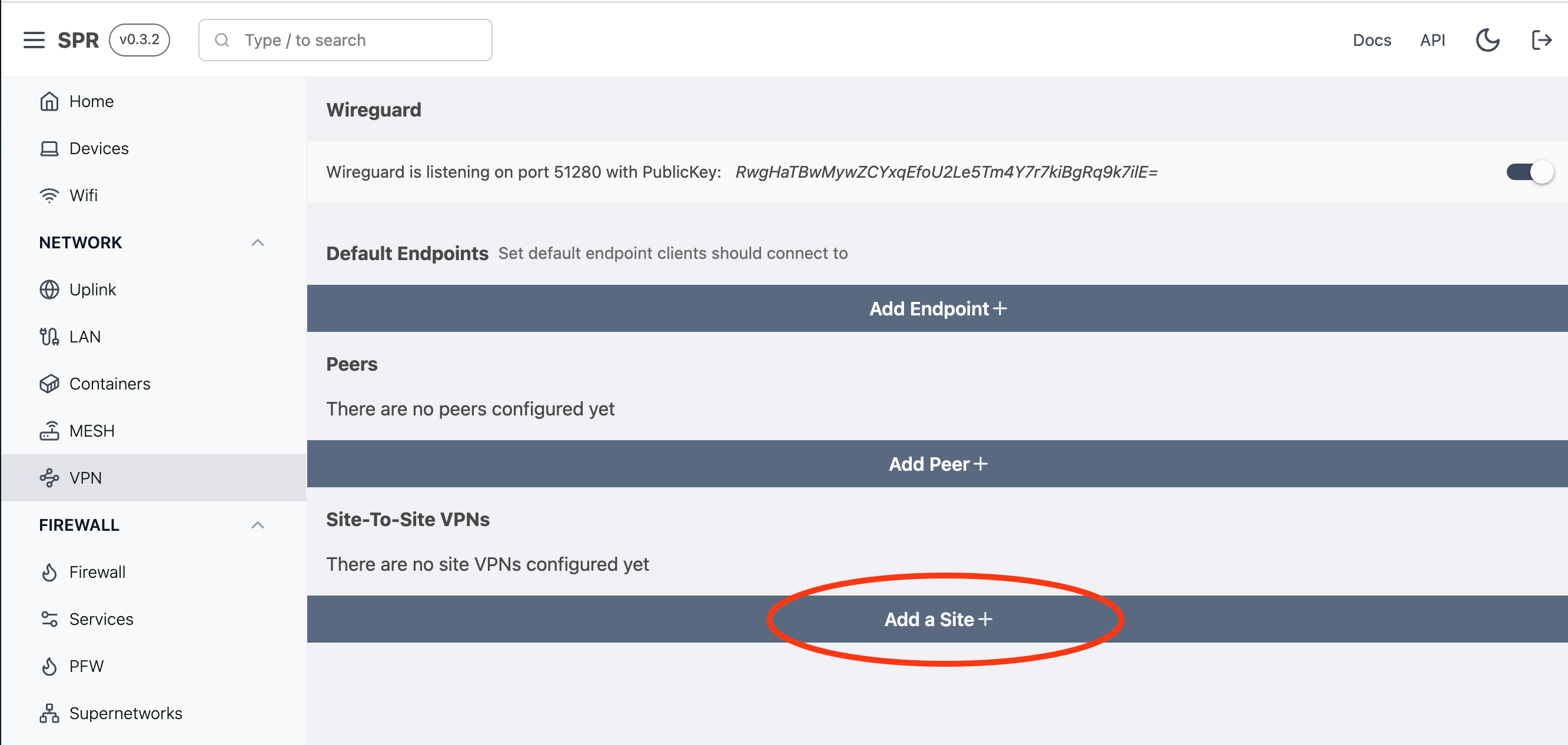
Once PFW is enabled, a new menu should appear under the VPN view.
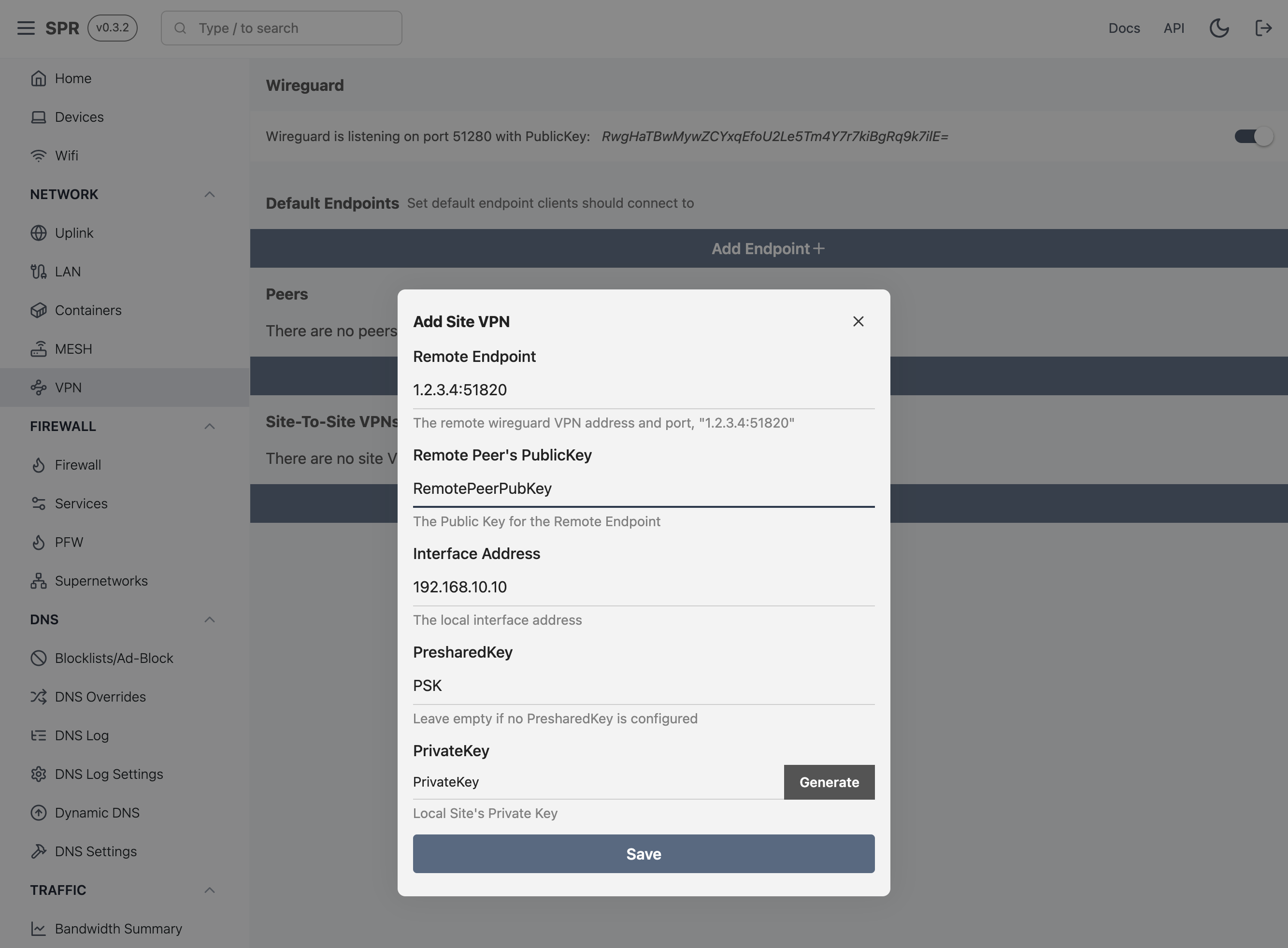
Next, fill out the wireguard details. The 'Interface Address' should be the Peer IP for SPR
that the remote wireguard has assigned.
Routing Traffic
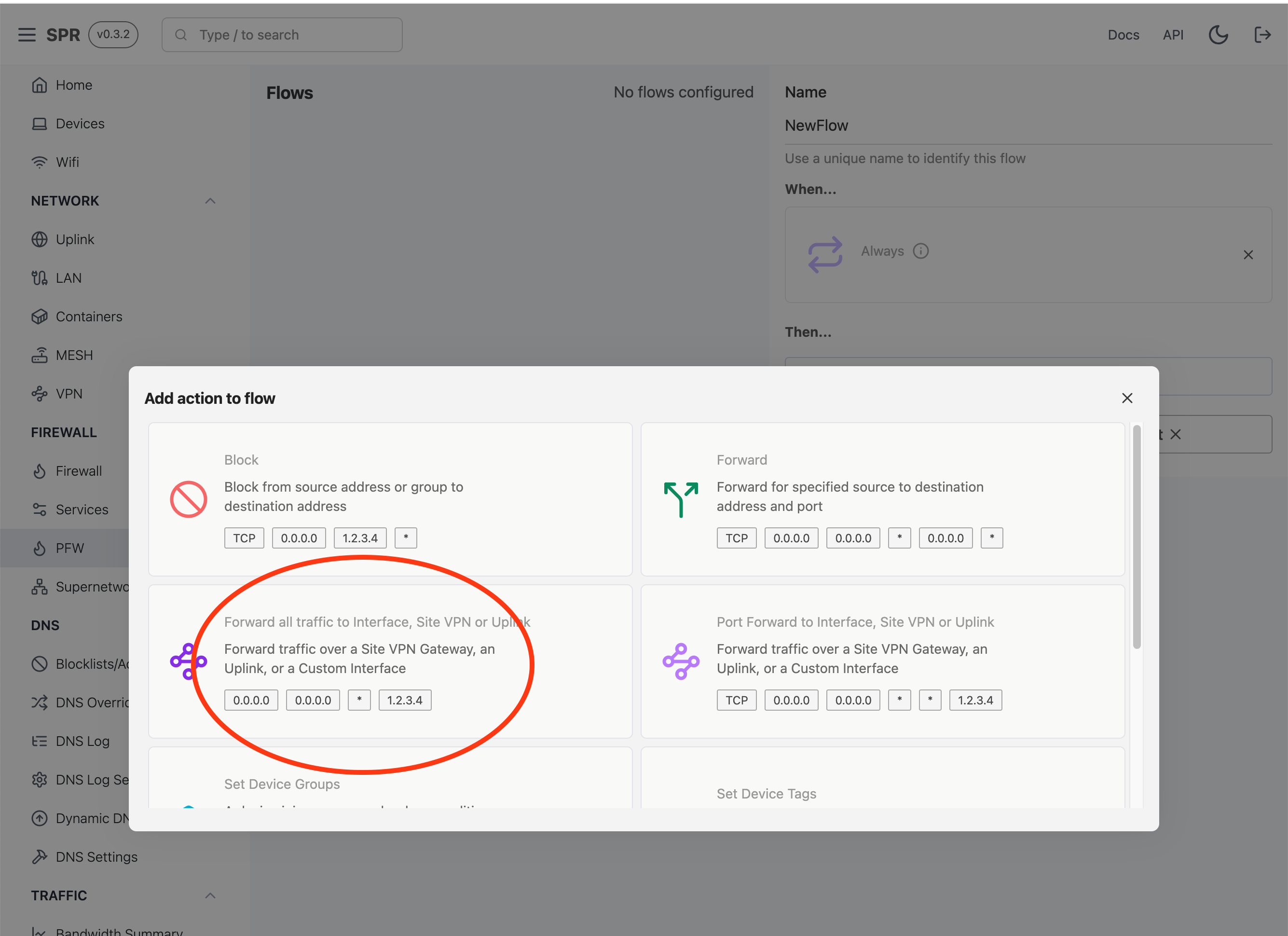
Next, we can use the PFW extension to create Policy rules that redirect traffic over the site interface.
Select the Forward all traffic to ...Site VPN or Uplink action
Fill out the parameters, selecting the Client/Group/Tag to apply the rule to.
Select the site0 destination itnerface. The destination can be left blank for Site VPNs.
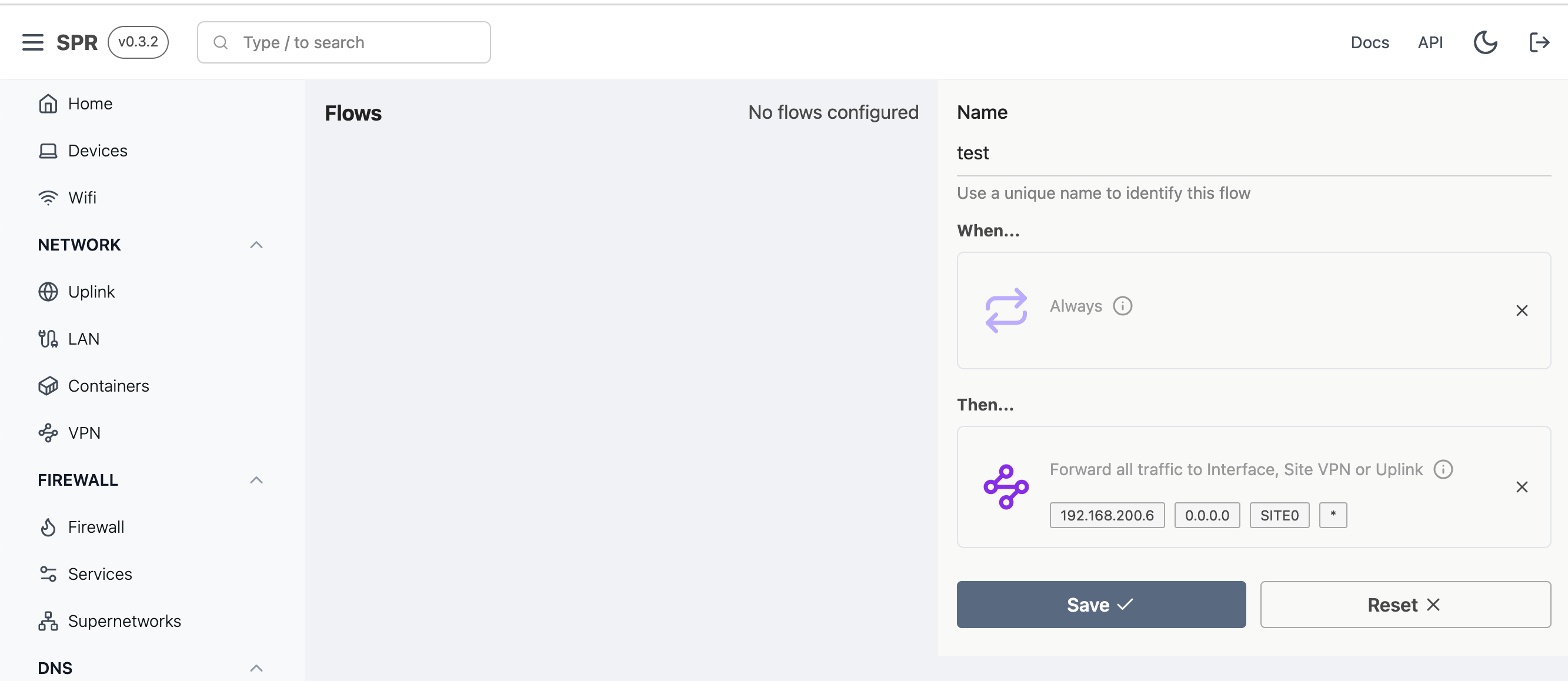
Now outbound traffic from the selected device will go out over the Site VPN.
DNS Split Tunnel
Note that DNS request still go through the main router DNS service. In a future release, a parameter will be available to also route DNS queries through the Site VPN.
Verifying connectivity
In an upcoming release, status will be visibile in the UI. For now, users can run the following command on SPR
docker exec -it superwireguard wg show
interface: wg0
  public key: PUBKEYPUBKEY=
  private key: (hidden)
  listening port: 51280

interface: site0
  public key: PUBKEYPUBKEY=
  private key: (hidden)
  listening port: 52538

peer: PEERPUBKEYPUBKEY=
  preshared key: (hidden)
  endpoint: 1.2.3.4:51280
  allowed ips: 0.0.0.0/0
  latest handshake: 11 seconds ago
  transfer: 272.20 MiB received, 50.05 MiB sent
And check that the site0 interface has the correct peer IP
docker exec -it superwireguard ip -br addr show site0
site0 UNKNOWN 192.168.241.2/32